The Polaroid Lab photo printer promises real Polaroid pictures directly from your smartphone. We take a closer look at for whom that makes sense and what the technology is all about.
In short:
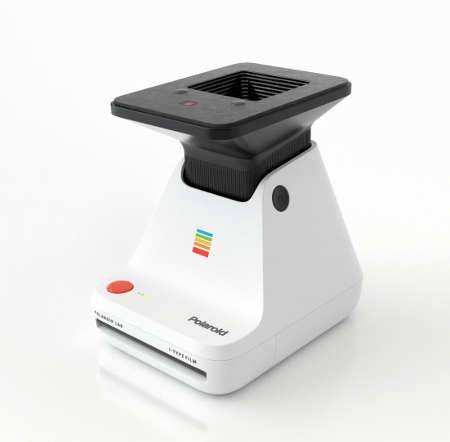
- Photo printer for smartphone pictures
- Real Polaroid pictures
- Format: 1:1
- No Wifi or Bluetooth needed
- Accompanying app
What makes Polaroid pictures so special today
How often do unique pictures on your smartphone get forgotten? With the constant availability of high quality cameras on smartphones, the photo has lost value as a special memory. This explains why instant cameras are enjoying such a resurgence in popularity today. With the Lab photo printer, Polaroid is now attempting the direct connection of cell phone and instant photo.
How does the Polaroid Lab printer work?
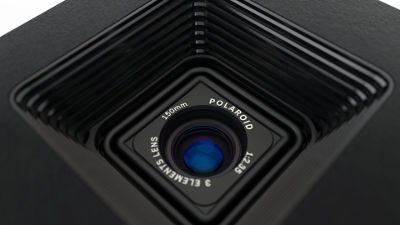
Commonly, photo printers are connected to your smartphone via Bluetooth or Wifi. The Polaroid Lab works differently: here, the phone is placed on the printer with the display facing down. A system of three lenses takes the desired photo directly from the smartphone display. This works thanks to an app available for Android and iOS. If the phone is positioned correctly, the red shutter button on the device is pressed and the photo is ejected. The picture then has to “rest” for a few minutes with the image side down until it is fully developed. A real Polaroid, indeed.
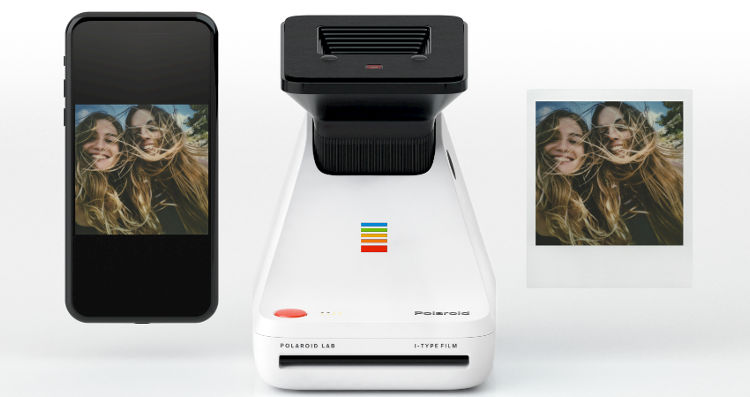
The technology
With its chunky shape, the Polaroid Lab photo printer looks a little like a kitchen scale. But the design makes perfect sense. To load the film, you flip the bottom front down and slide in the film cartridge. It sometimes takes a bit of pressure to get the film to snap into place. If you close the slot, the cover sheet of the film is ejected (even when turned off). To turn on the Lab, press the black button on the side, and the platform for placing the phone automatically extends upwards. Now you remove the protective plate.
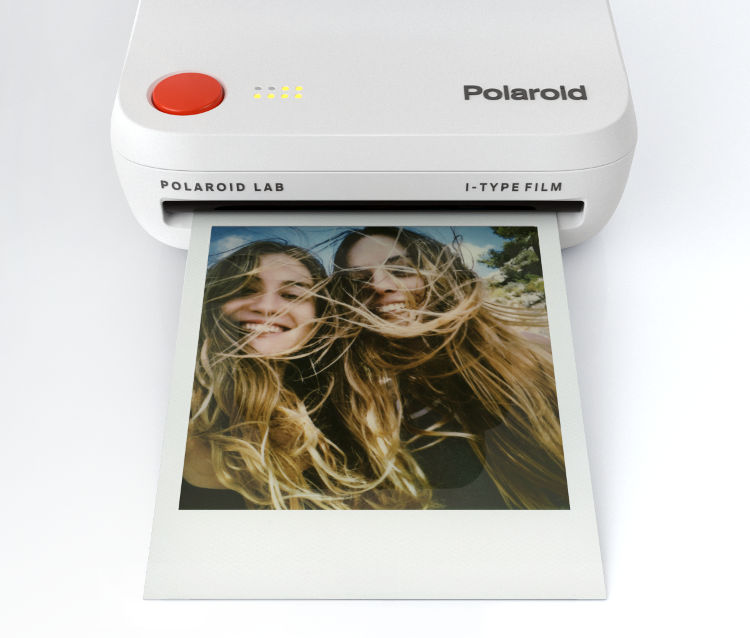
On the phone you select the desired photo in the app and place the phone on the Lab (two dots on the display help with correct placement). The LED on the front lights up to indicate that the Lab is ready for use. If you press the red shutter button, the picture is ejected after a few seconds. At the same time, a protective sheet extends from the device: It is supposed to protect the photo from light. Now you can turn the photo over and have it developed. Depending on the type of film, this takes about 5 to 15 minutes. As usual: No shaking! The Polaroid Lab is switched off simply by pressing the platform down again, or you can wait until the device switches itself off after a few minutes.
Which film belongs in the Polaroid Lab?
The Lab uses the modern Polaroid films. The i-Type film or 600 film are possible. We recommend using i-Type film due to its lower price (we explain the difference between the films here). SX-70 film is not supported.
Other
The Lab is charged via micro USB. Pleasantly, the device is also fully operational during charging. Four LEDs above the USB slot inform about the battery level, if it is down to one dash, there is juice for two whole films (16 photos). Eight white LEDs next to the shutter release provide information about the remaining photos. Be aware: Scratches or dirt on the display may well affect the quality of the final picture.
The Polaroid Lab App
Operating the Lab via app is pleasantly intuitive, as the app is comparatively slim. One looks in vain for lush post-processing modes like on other devices. The app informs you about the basic functionality at the beginning: Select photo, lay down, done. The app offers the option to take photos directly, but that does not really make sense. Exposure and color can be adjusted via sliders. Good to know: The app controls the brightness of the display itself, so no fine-tuning is necessary. However, special reading or night modes should be avoided.

Collage mode
A collage mode offers the possibility to split single images into two or more parts. Not a cheap pleasure. With a price of up to 2 euros per picture, you should think twice about splitting a picture into eight parts.
Augmented Reality Mode – AR
A cool feature of the app is the AR or somewhat more bulky Augmented Reality mode. Here you have the option to link a video from the phone with a photo. The trick: if you later hold the smartphone camera over the printed photo, the linked video runs as if by magic within the image. A setting determines whether only you or anyone with the app and photo can play the video. Important: not every smartphone is AR compatible. Here’s information on compatible devices: https://support.polaroid.com/hc/en-us/articles/204378638
The images
The most important thing to finish. As usual with Polaroid, the pictures are in the classic 1:1 format. This positively sets the device apart from popular models like the Instax Mini Link. In numbers, that means 3.1 x 3.1 inches visible image or 4.2 x 3.5 inches with (mostly white) border. The quality of the pictures is typical of instant photos: anyone expecting SLR quality will be disappointed. Instead, the color reproduction is never perfect, but that’s exactly what makes instant pictures so charming. Soft colors and a touch of nostalgia.
Tech specs
- Dimensions: 5.9 x 45.5 x 58.9 inch
- Weight: 21 oz
- Film: i-Type or 600 film
- Lithium ion battery
- Micro-USB
- Lens type: 1:2.35 three lens system
Here you’ll find the Polaroid Lab user manual.
CONCLUSION
The Polaroid Lab does not replace a Polaroid camera. Instead, it offers the opportunity to create unique memories from the thousands of photos on your phone, from the few that really matter. The advantage of this is that, unlike an instant camera, the cell phone is always with you. The fun is not quite cheap, however. Whether the almost two bucks per picture are worth it is something everyone has to decide for themselves. The fact is: There’s nothing like a real Polaroid! Thinking about getting a Polaroid yourself? Take a look at the Polaroid Now!
VIDEO: Polaroid introduces the Lab photo printer

How to use: Polaroid Lab
Step-by-step tutorial on how to use the Polaroid Lab photo printer.
What you need:
- Polaroid Lab
- i-Type or 600 film
- Polaroid Lab Android or iOS App
Steps:
- Download and install the Polaroid Lab app for Android or iOS
- Open the app and chose a photo to print
- Activate the lab by pushing the black button on the side
- Remove the cover plate from the lab if still on
- Place your phone heads down on the Lab by using the two dots on the screen to adjust properly
- Wait until the front-led lights up permanently
- Press the shutter button
- Take the photo and place it face down until the photo is fully developed (up to 15min, depending on the film)